English
English

Dashboards consist of widgets. Depending on your dashboard type, you will have multiple widget types to choose from.
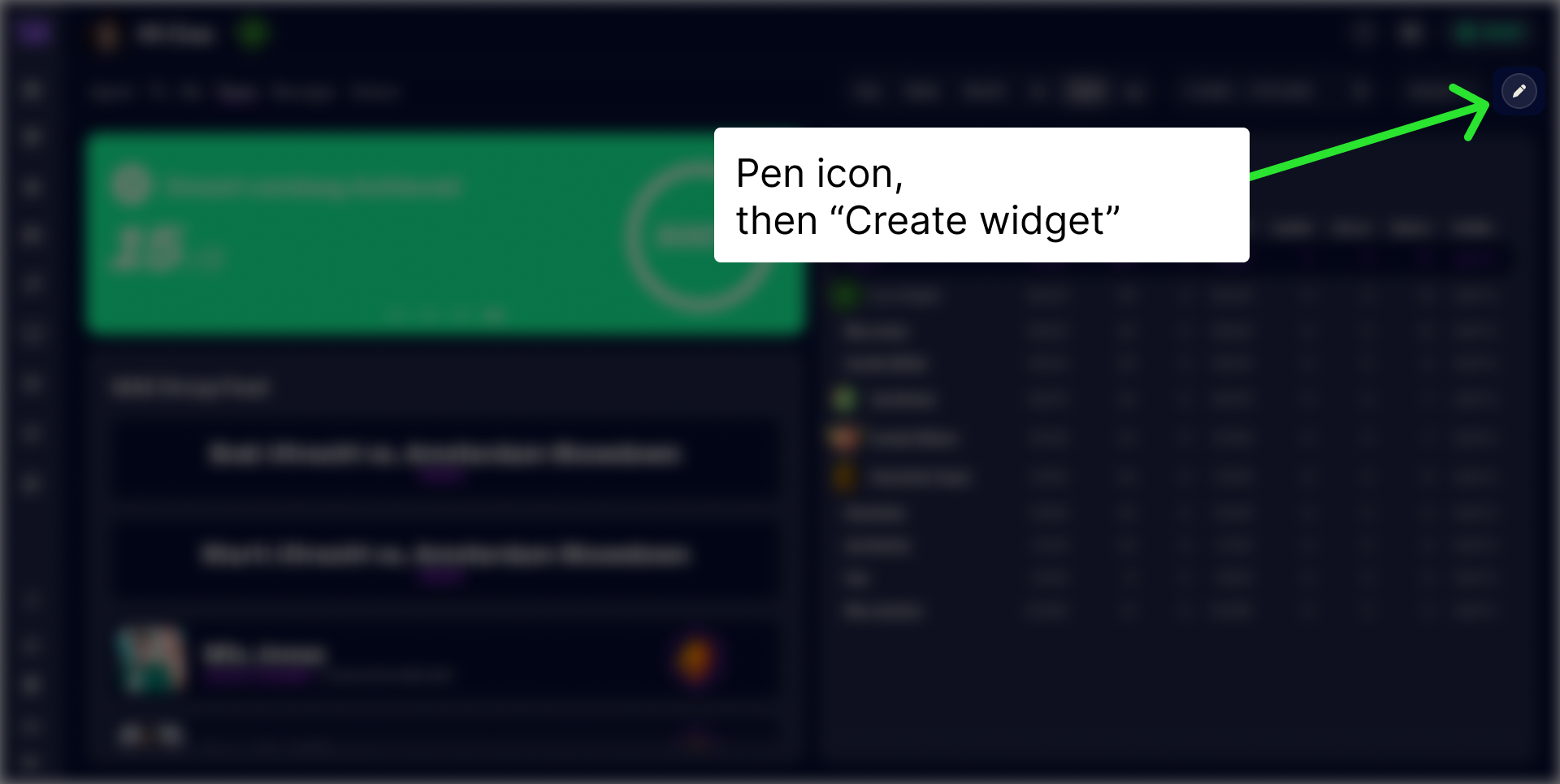
To add a widget to a dashboard, click the pen icon in the top right corner. This option is only available to admins on desktop.
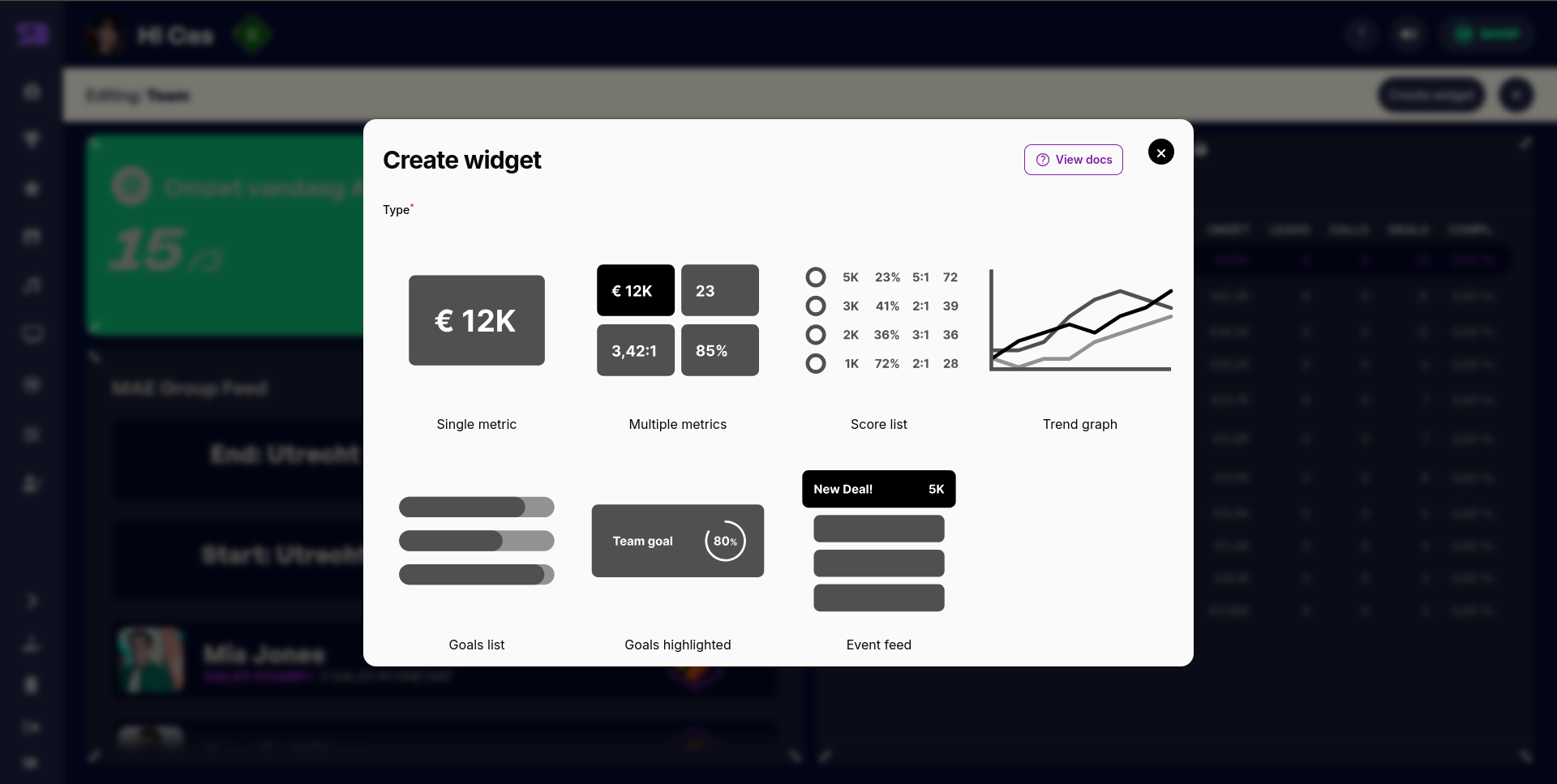
After you click "Create widget", a modal will appear where you can select the widget type and configure it.
Most widgets offer the option to configure a title. This is useful to distinguish multiple widgets of the same type, for example when displaying two categories of metrics.
Some widgets also have the option to select a "type", this is the aggregation level of the data in the widget. You usually want to set this to "Agent", selecting multiple values will allow the user to choose between them in the widget.
Some widgets have a configurable "Date filter mode". You should usually leave the date filter mode option on "Period". This way, the data in the widget will adhere to the date range filtered on the dashboard.
The most straightforward type of widget is the single metric widget. This widget allows you to display a single metric on your dashboard. All you have to do is select the metric and give it a title.
The multiple metrics widget is the same as the single metric widget, but it allows you to display multiple metrics in the same widget.
To add metrics, simply click "Add to metrics" and configure the metric as you would for a single metric widget.
To change the order of the metrics, drag and drop using the arrows on the top left of each metric.
This score list is the primary way to display scores in SalesDash. You can either configure columns for this specific widget or chose to use the global column configuration.
The global column configuration can be configured at Dashboard > Score table columns in the SalesDash admin.
To configure columns for this specific score list, click "Add to columns" and configure each column as you would a single metric widget. To change the order of the columns, drag and drop using the arrows on the top left of each column.
The trend graph allows you to display changes in a metric over time. You can select multiple metrics, the user can switch between them in the widget. The top metric will be shown by default.
The goals list widget shows the goals you have set for your team. The data in the widget will adhere to the team filter in your dashboard and it will show all the goals that overlap with your selected date range.
To configure goals, go to Gamification > Goals in the SalesDash admin.
The goals highlighted widget is functionally the same as the goals list widget, but it highlights one goal at a time. If the goal is not (yet) achieved, the whole widget will be colored with your primary color. If it is achieved, it will be colored in your highlight color.
Goals will be shown in a carousel, you can also click the button at the bottom to skip through them more quickly.
The event feed shows all the events of the team(s) shown on the dashboard. Which events are shown can be configured in the admin at Gamification > Events.