English
English

Achievements are badges that agents earn by reaching milestones — closing a number of deals, hitting a personal goal, being the top performer of the week, and so on. Unlike competitions, achievements are not time-bound challenges with prizes: they are a permanent collection an agent builds up over time. Each agent picks one earned badge as their featured achievement, which then shows up next to their name across the dashboard, leaderboards, and slideshows.
Achievements are awarded automatically as agents take action — no admin involvement is needed once a badge is configured. When an agent earns a badge, they get a notification and the badge is added to their collection.
Admins create and manage achievements from the Achievements page in the admin. Agents view the ones they've earned — and the ones still to unlock — on their own achievement page (see Your achievements).
Each achievement has a type, a badge, and (for some types) a metric and threshold. Depending on the type it is either a single badge or a set of levels — see Badges and levels below. You enable an achievement, and from that point on SalesDash watches for agents who meet its condition and awards the badge automatically.
Every achievement is represented by a badge — the artwork agents collect. SalesDash ships with a large set of built-in badge families (Alpha, Champion, Hustler, Rainmaker, Titan, Wizard, and many more), and you can upload your own from the Custom badges page.
Badges come in two forms:
A custom badge can likewise be a single image, or a family of up to three images for levels I, II, and III.
When you create an achievement you choose its type, which decides what condition earns the badge. The type cannot be changed afterward.
Metric threshold Awards a badge when an agent's metric reaches a target — for example a number of sales, calls, or call minutes. This is the only leveled type: you set a threshold for each of levels I, II, and III. You also choose a time range: all-time, per day, per week, or per month. With a time range, the badge can be earned again in each new period. Example: a "Closer" badge family awarded at 5 sales (I), 10 sales (II), and 15 sales (III) in a week. An agent who closes 12 sales in a week earns levels I and II that week.
Highest value this week Each week, the single agent with the highest value of the chosen metric earns the badge. A different agent can win it each week. Example: the agent with the most calls in a week earns the "Speedy Gonzales" badge.
Highest value this month The same idea over a calendar month — the top agent for the chosen metric earns the badge. Example: the agent with the highest commission for the month earns a "Rainmaker" badge.
Personal goal reached Awards a badge whenever an agent reaches one of their personal goals (see Personal goals). Example: every time an agent hits their weekly sales goal, they earn the "Goal Getter" badge.
First activity in a project The first agent to log a qualifying activity in a newly created project earns the badge — one winner per project. You choose which activity types qualify. Only projects created after the achievement is enabled are eligible, so existing projects don't all award the badge at once. Example: the first agent to log a call in any new project earns a "Trailblazer" badge for that project.
Mobile app installed Awarded automatically when an agent enables notifications in the SalesDash mobile app. Example: a "Connected" badge that nudges agents to install the app and turn on notifications.
Manually awarded There is no automatic condition — an admin awards this badge to an agent by hand. Useful for one-off recognition that no metric captures. Example: an "Employee of the Month" badge handed out at the admin's discretion.
Create an achievement from the Achievements page. The available fields depend on the type you pick:
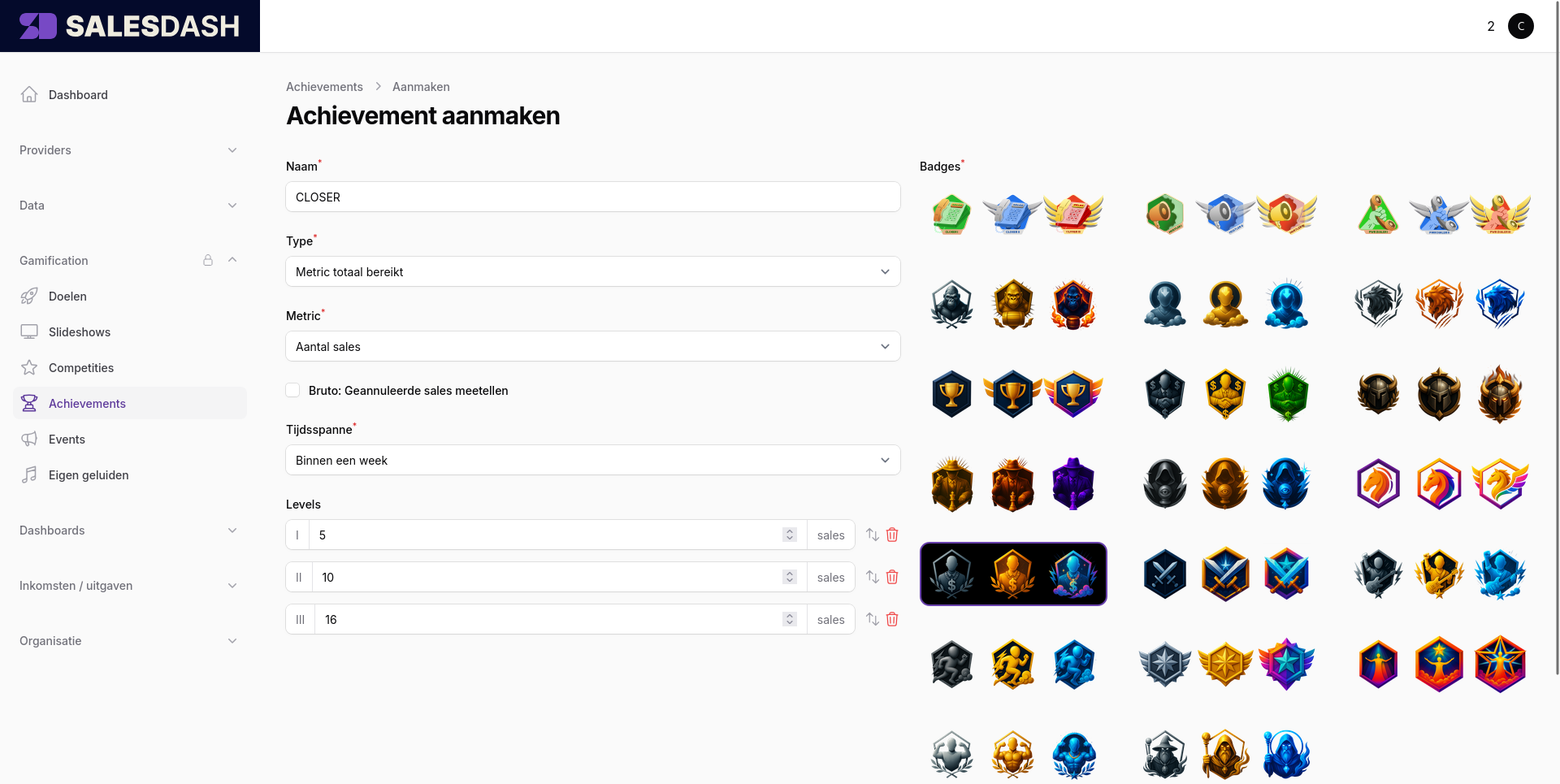
Editing an existing achievement
Changing an achievement's threshold or metric only affects future awards — badges already earned are not recalculated or revoked. Changes to the name, badge, or levels do apply to badges already earned, since those only affect how the badge is displayed. To take back a badge that was awarded by mistake, use the View agents action on the achievement and revoke it there.