English
English

Connect Claude or ChatGPT to your SalesDash environment, and your assistant can do two things: tell you how the team is performing, and help you do something about it.
It reads the same performance data your dashboards show — totals, rankings, trends, goal progress, competition standings. And when the numbers point at a problem, it can set the goal, launch the competition or create the achievement that fixes it, right there in the conversation. You approve each change before it happens.
This runs over MCP (Model Context Protocol), the open standard AI assistants use to connect to outside systems. You point your assistant at your environment once, sign in with your SalesDash account, and it stays connected.
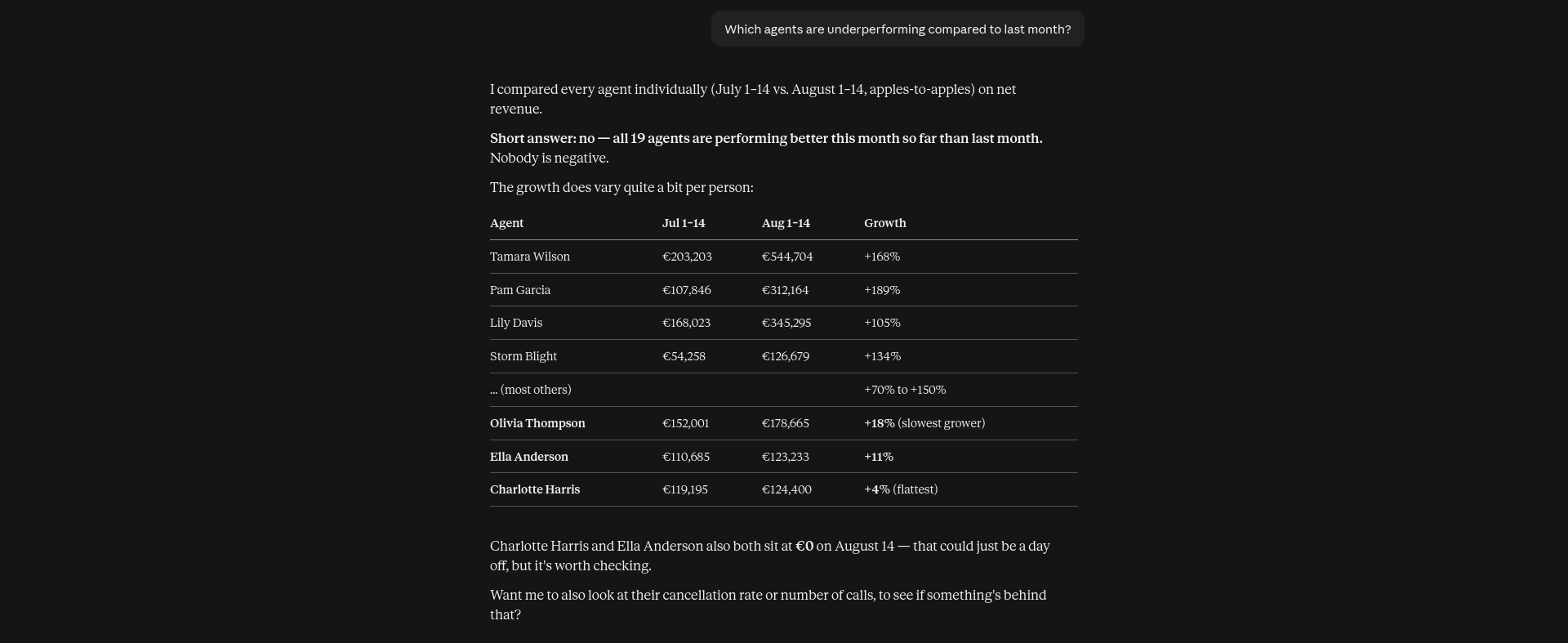
A dashboard tells you what. It doesn't tell you what to do next, and it certainly doesn't do it for you. That gap is where most performance problems sit for a few weeks longer than they need to.
A conversation closes it:
You: Demos booked have gone flat this month. What's going on?
Assistant: The team is at 62 demos, against 89 at this point last month. Three of your seven agents are behind their personal goal, and the drop is concentrated there — the other four are steady. Nothing is currently running on demos booked.
You: Can we put something on it for the rest of the month?
Assistant: A step competition fits here better than a ranking — you don't want your four steady agents competing for one prize, you want the other three over a line. Milestones at 15, 25 and 40 demos, running to the end of the month?
You: Do it.
By the time you close the laptop, the competition is live, it's on the dashboards, and it's in the slideshow rotation on the wall.
That's the point of the connection. Not another way to read your figures — a faster route from noticing something to acting on it.
Anything you'd otherwise go looking for, plus the follow-up questions a dashboard can't answer.
How are we doing
Who's driving it
What's happening over time
What's running right now
What's on the screens
You don't need to know what your metrics are called. Your assistant first asks SalesDash what exists — your metrics, teams and agents — and matches your wording to it. It also picks up your environment's own vocabulary: if you renamed agents to Recruiters on the Look & Feel page, ask about recruiters and you'll get an answer.
Your assistant has the full SalesDash toolkit, not just the numbers:
Goals. Set an agent's personal goal, or create, adjust and remove team goals. "Give everyone a personal goal of 20 demos for July" is one instruction, not twenty visits to the admin.
Competitions. Create, adjust, finalise and reopen competitions. It knows every competition type and what each is good for — a ranking when you want a race, a step competition when you want everyone over a line, a showdown when two teams need a reason to care about each other's numbers — so it recommends the shape that fits the situation instead of defaulting to a leaderboard.
Achievements. Create achievements, and award or take one back by hand. "Make an achievement for the first 100 deals and award it to whoever already passed it" works.
Slideshows. Build and change what the screens on the floor actually play: create a slideshow, add slides to it, reorder them, switch one off for a week, remove one. It knows every kind of slide and what each is for, so "put the new competition on the sales floor screen, right after the top 5" is one instruction. It won't delete a slideshow a display is still paired to, because that would stop those screens working — it tells you to switch it off instead, which is reversible.
Because it can read the state of things before it changes them, its suggestions are grounded in what your environment can actually do: it checks that a metric is eligible for a competition, sees what's already running so it doesn't stack two contests on the same metric, and knows which agents are already behind pace.
Your assistant never changes anything on its own. Every action it takes is a request you approve first, in your AI client, with the details in front of you: the metric, the target, the dates, the participants.
Both Claude and ChatGPT let you tune this per tool. Out of the box they'll ask before each call, which gets repetitive when you're only asking questions. The setting that makes it comfortable is to auto-approve the read-only tools, the ones that just look things up, and leave approval switched on for anything that writes. Questions then flow without a single click, while every goal, competition and achievement still passes across your desk.
For that to be possible at all, choose Read & write on the SalesDash approval screen when you connect. Pick read-only and your assistant can answer questions but not act on them.
It reports totals, not records. You get metric totals, rankings, trends, goal progress and competition standings. What you can't ask for is the list of individual deals, calls, contacts or appointments behind a number. That data lives in your CRM or telephony platform, and that's where you go to look it up. Ask anyway and it will say so rather than invent a list.
It never sees customer or lead personal data. The names, phone numbers and email addresses of your customers aren't part of what the connection exposes. It sees your agents, teams and metrics, the same names that already appear on your dashboards.
It can't put your own images on a slide. A background photo, or a slide that is nothing but an image, is a file you upload on the Slideshows page — the connection carries text, not files. Ask for one and it will point you there. Everything else about a slideshow it can do itself.
It doesn't make numbers up. Ask about something your environment doesn't track and the answer is "that isn't tracked here", not a lookalike metric. If a figure doesn't match your source system, that's one for support.
The AI Connection is for admins. Agents don't have it. Their own figures and personal goals live on their dashboard.
A connection is personal and covers one environment. You sign in with your own SalesDash account, and your assistant sees exactly the environment you signed in to. If you administer more than one, add each with a unique name so you and your assistant can tell them apart.
In the top right of the admin, click AI Connection. The page gives you the two things your assistant needs — a name and a URL — with a copy button next to each.
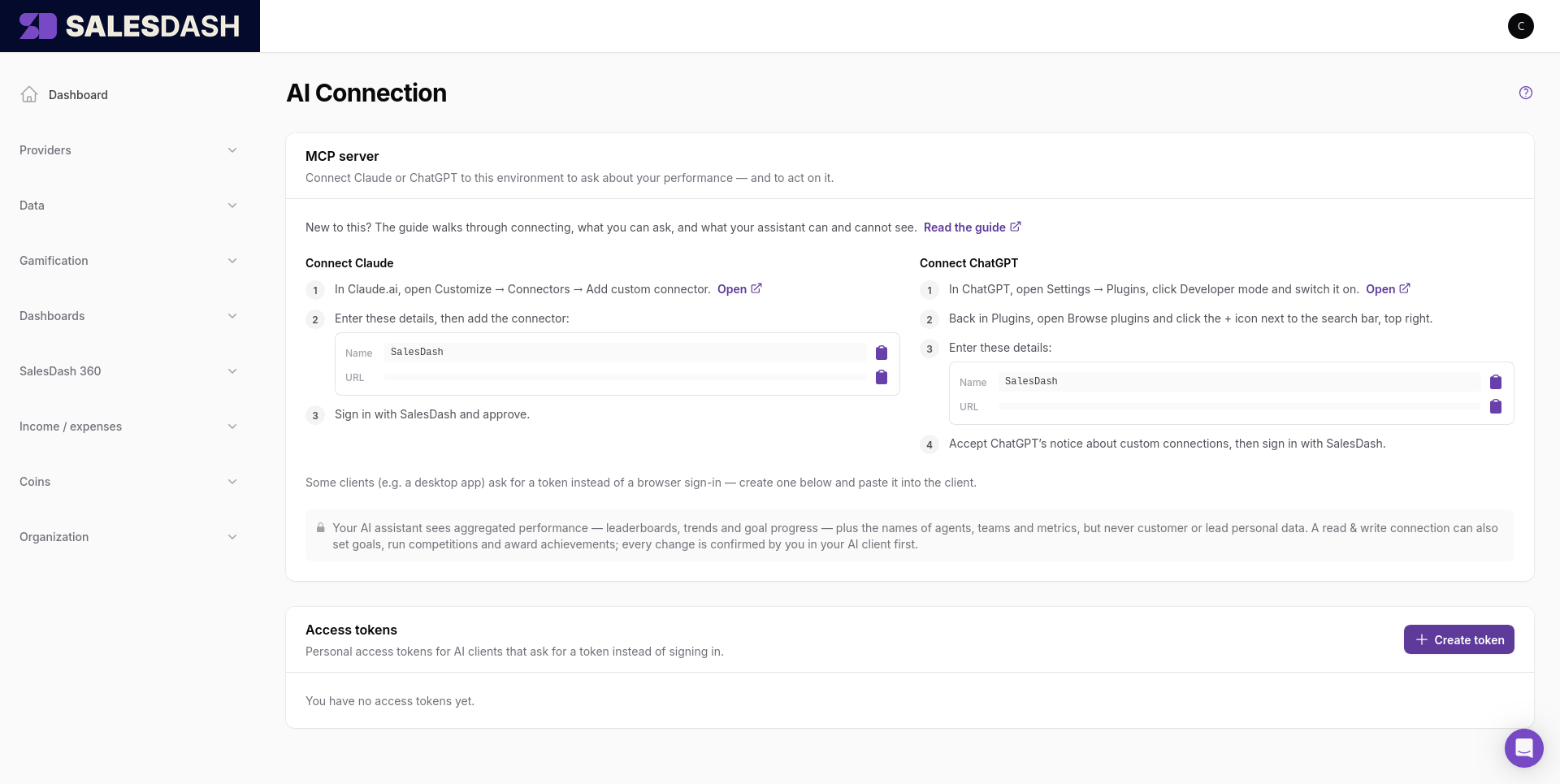
ChatGPT keeps custom connections behind a developer setting, so there's a step more:
Some clients — desktop apps in particular — ask for an access token instead of sending you through a sign-in screen. Create one under Connected AI clients on the AI Connection page, choosing read & write, copy it while it's shown (it appears once), and paste it into the client along with the same URL.
Everything with access is listed under Connected AI clients on the AI Connection page: the assistants you signed in with, and any tokens you created. Each row shows what it is, whether it can write as well as read, and how long it has had access.
Revoke cuts one off immediately. That assistant's next request fails, and nothing else you have connected is affected. Revoke when you stop using an assistant, when you connected one on a device you no longer have, or if you ever suspect someone else has reached your account.
Revoking a sign-in is reversible: connect again the same way and you are back. Revoking a token is not — the token itself is gone, and reconnecting means creating a new one and pasting it in.
Changing your SalesDash password disconnects everything at once, which is the fastest way to cut off access you are unsure about.
The AI Connection puts your numbers inside the assistant you already use. The next step is the other direction: AI inside SalesDash itself, surfacing what matters without being asked.
The idea is that you shouldn't have to think of the right question. A team quietly slipping behind pace, a competition heading for a dead heat in its final days, an agent whose week broke their own pattern — those are things SalesDash can see before you go looking, and tell you about while there's still time to act on them.
We're building this now and want it shaped by the people who'll use it. If you'd like early access, email Cas to go on the waitlist.