English
English

SalesDash shows you at a glance how you're doing: your own results, your team's, and the competitions you're taking part in. This page walks you through everything you can do.
Your organisation decides which features are switched on and what the dashboards look like, so your screen may look a little different from the examples on this page.
You'll receive an invitation by email. Use it to set your password and log in for the first time. Forgot your password? Use Forgot password? on the login screen.
SalesDash works in your browser, but you can also put it on your phone as an app. Click Install the App in the menu for instructions. Allow SalesDash to send you notifications so you hear straight away when you earn an achievement or a colleague challenges you.
The menu on the left takes you to every part of SalesDash. Click the arrow at the bottom to expand it.
In the top right you'll find:
After logging in you land on your profile page. This page is all about your own performance.
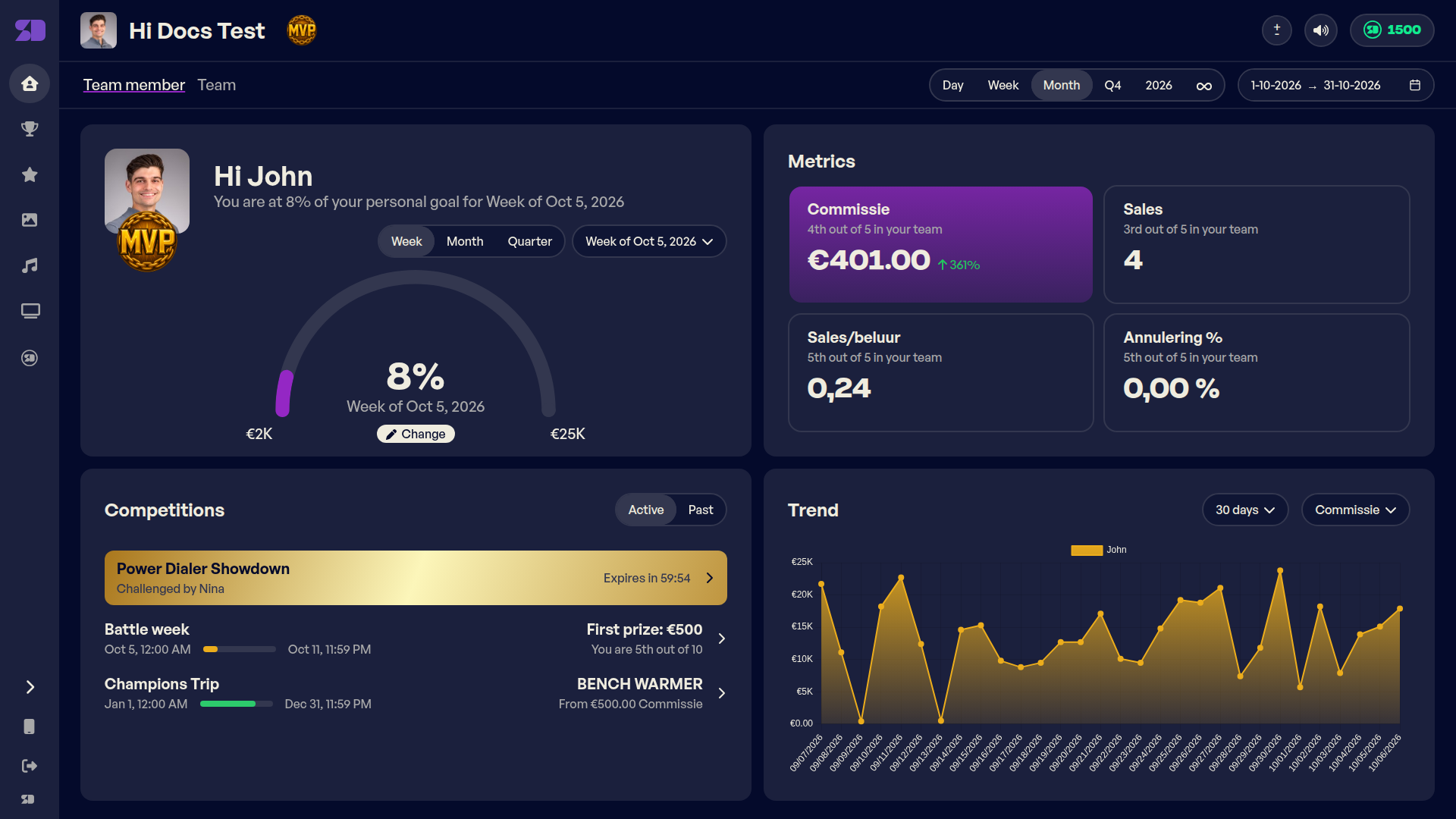
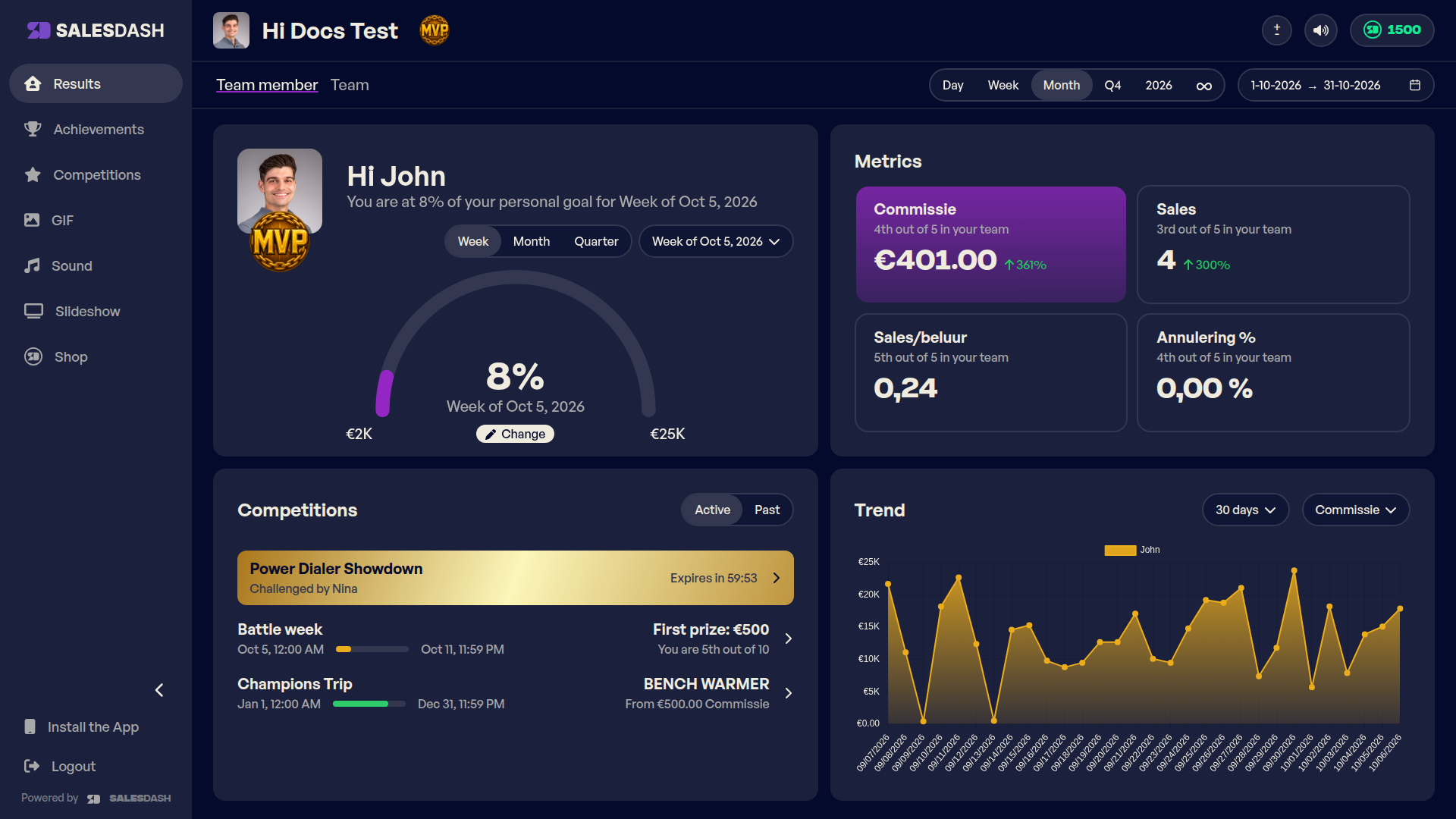
Personal goal — your progress towards your own goal for this week, month or quarter. If your organisation allows it, you set this goal yourself with Set goal or Change. See Personal goals.
Profile picture and badge — click your profile picture to upload a new photo. The badge icon below it is the achievement you've selected (see Achievements).
Metrics — your key metrics, as set up by your manager. Below each metric you see your position in the team ("3rd out of 5 in your team"). The arrow shows how much you've gone up or down compared to the previous period.
Use the buttons at the top (Day, Week, Month, quarter, year or ∞ for all-time) to choose the period your metrics cover. With the date picker next to them you can set your own start and end date.
Competitions — the competitions and showdowns you're currently taking part in, and any open challenges.
Trend — a chart of your results over recent time. Choose the period and the metric you want to see.
At the top of your profile page, click Team to go to the team dashboard. If you have access to more than one team, choose which team you want to see in the top right.
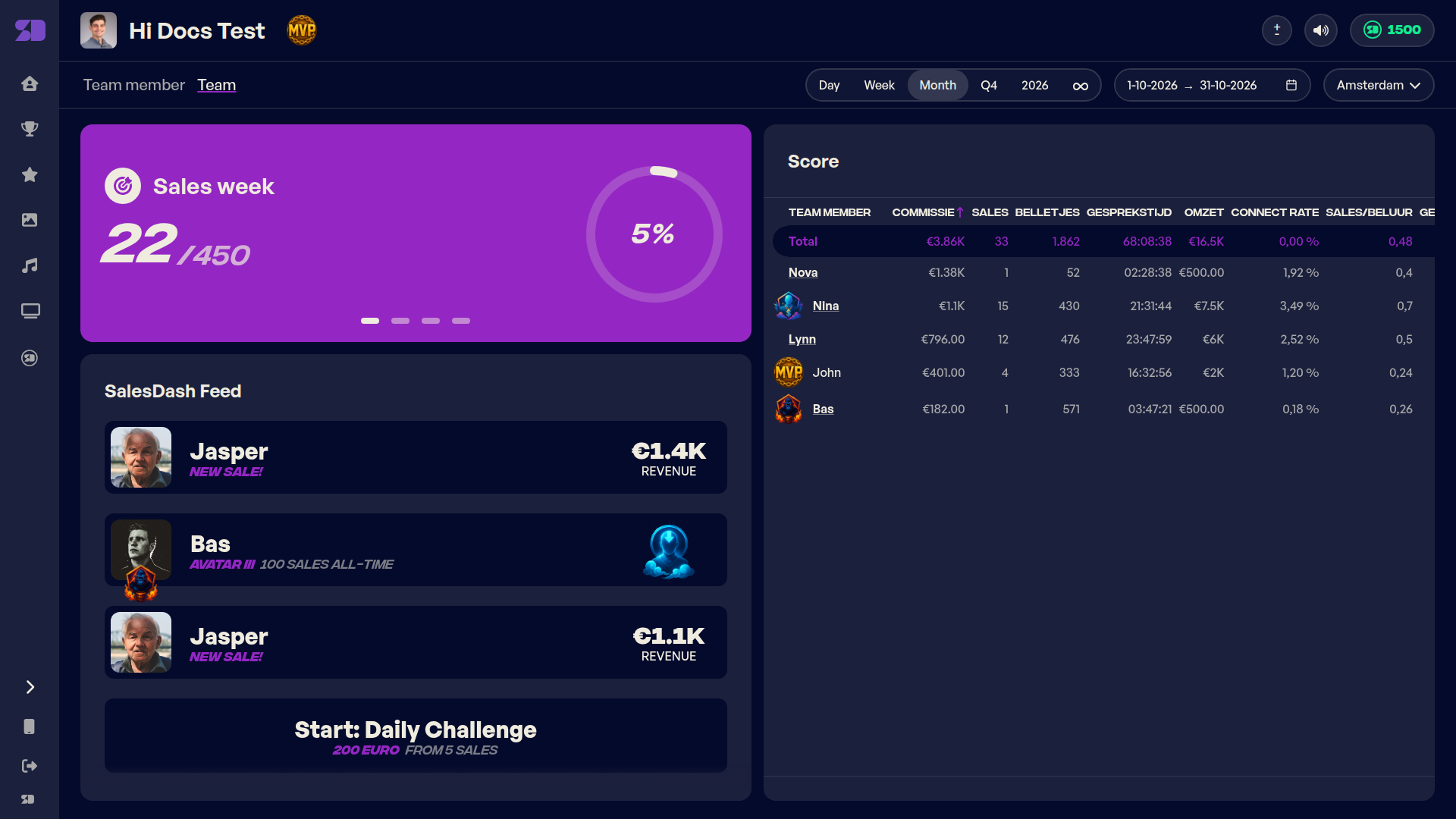
Team goals — the goals you're working towards together, with your progress. If there are several team goals, they take turns.
Score table — the results of all your team members side by side. Use the buttons at the top (Day, Week, Month, quarter, year or all-time) and the date picker to choose the period the scores cover. Click a column header to sort by that metric.
Feed — a live overview of what's happening in the team: new sales, achievements earned and milestones reached.
Challenging someone — hover over a colleague's name in the score table and click Challenge to Showdown to start a one-on-one contest. See 1v1 Showdowns.
On the competitions page you see every competition you're taking part in. Click a competition to see the full standings, the prizes and when it runs.
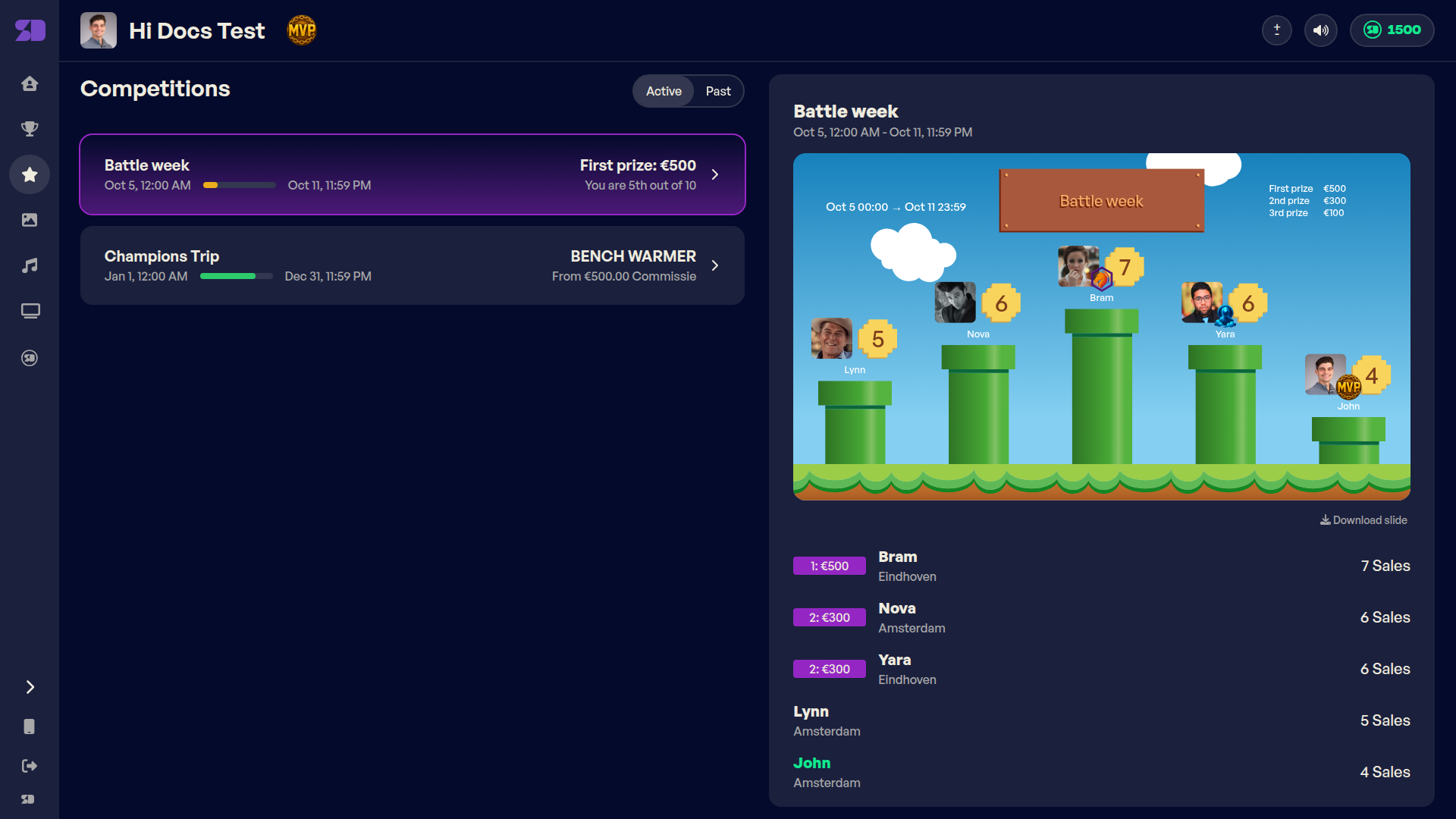
Use Active and Past to switch between running and finished competitions, so you can also look back at how you did before.
Competitions are set up by your manager or admin. You can start a showdown yourself by challenging a colleague.
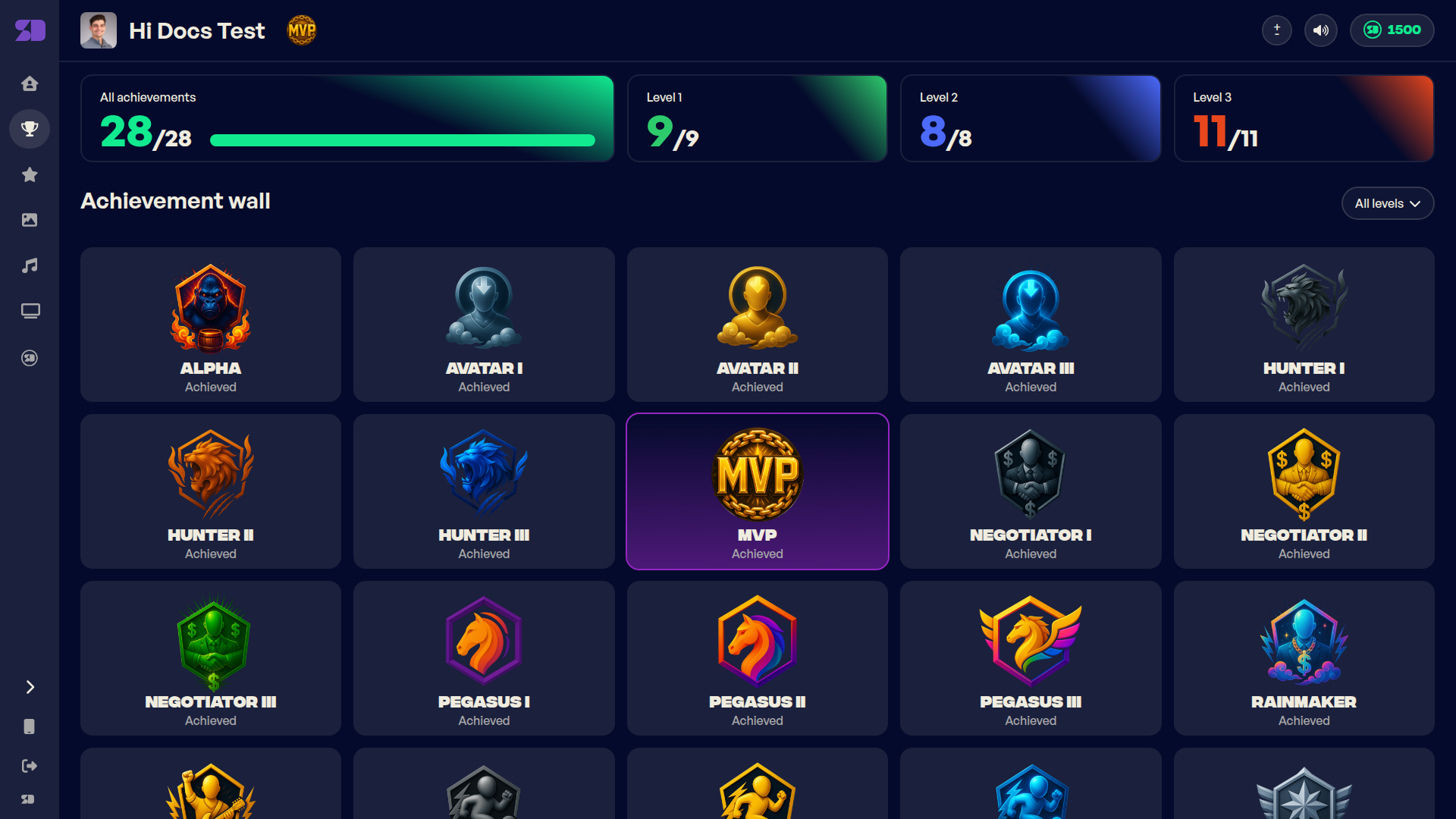
Achievements are badges you earn by reaching milestones, such as a number of sales in a week or hitting your personal goal. You get them automatically and receive a notification when you've earned one.
Your achievements page shows which badges you already have and which are still up for grabs. That's also where you choose which badge appears next to your name. See Your achievements.
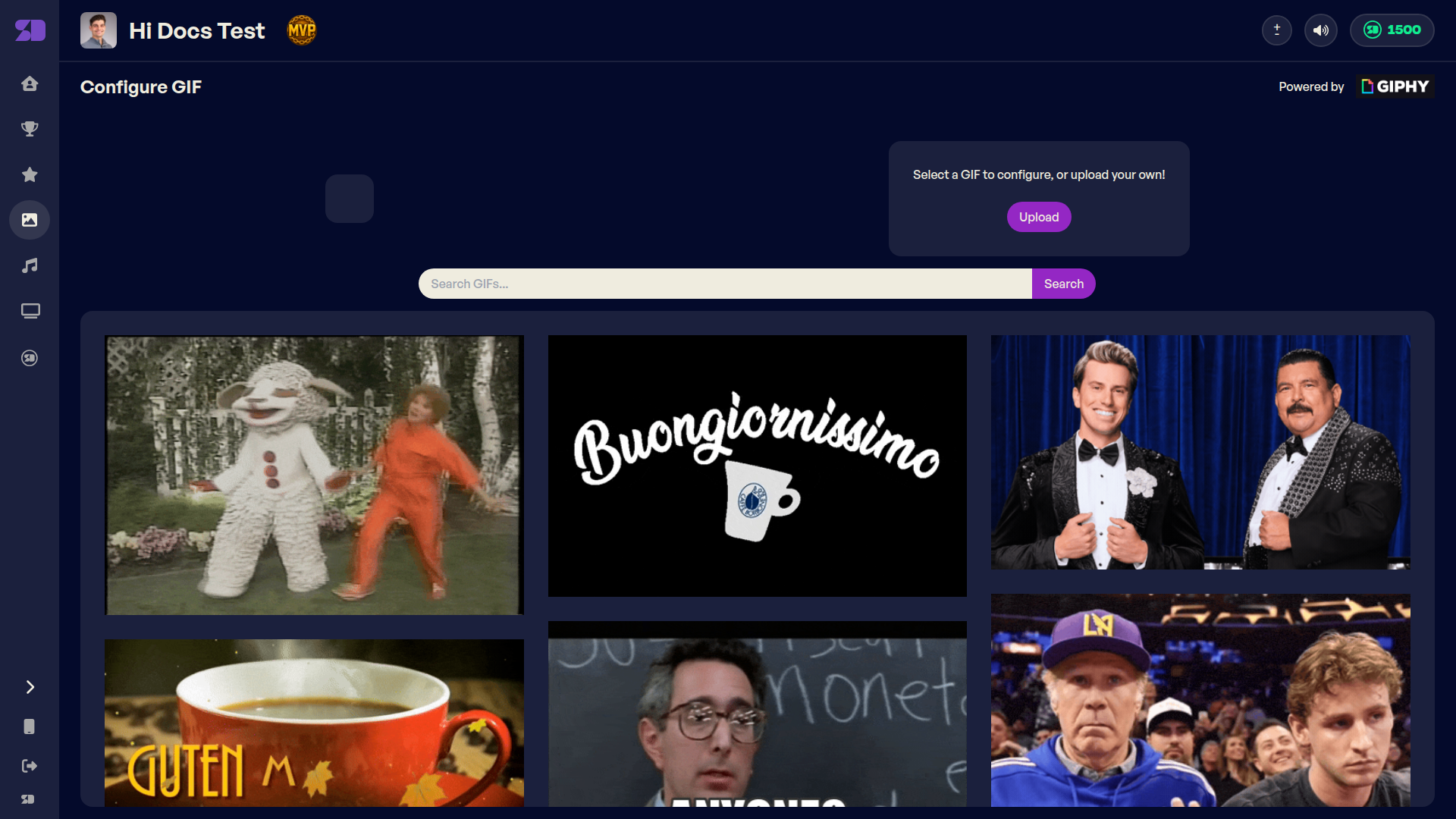
Every time you make a sale, your name appears in large letters on the office slideshow, with confetti. You can make that moment your own.
GIF — under GIF in the menu you pick a GIF (or upload your own). It appears on screen together with your name.
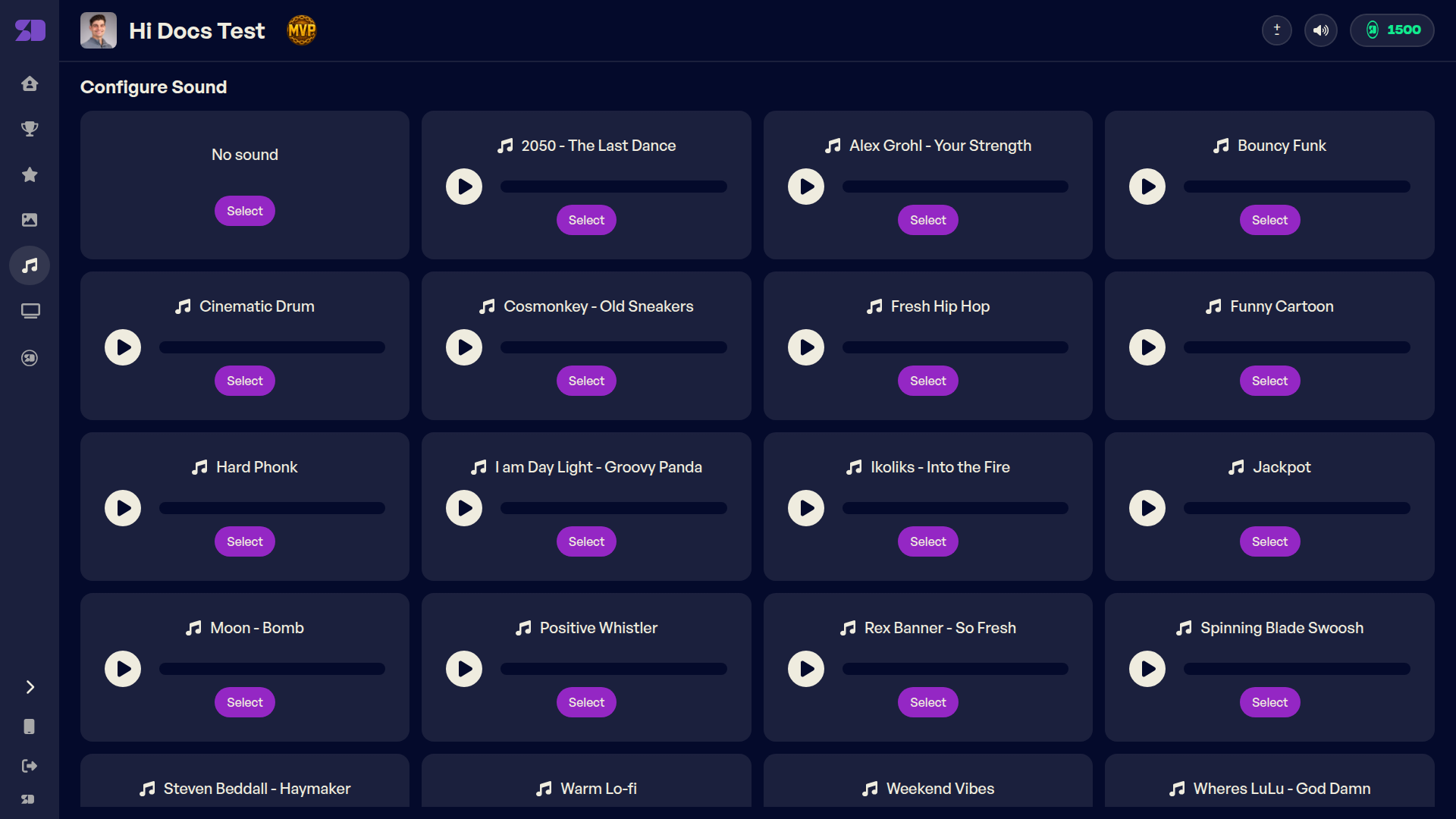
Sound — under Sound you choose the sound that plays for your sale. Click the play button to listen to a sound and Select to choose it. Your manager can also upload custom sounds, which then appear among the options.
The slideshow is what you see on the TV in the office: score tables, competitions, goals and the celebration for every sale. You can also open the slideshow on your own computer. Click Slideshow in the menu, then choose your team and the slideshow.
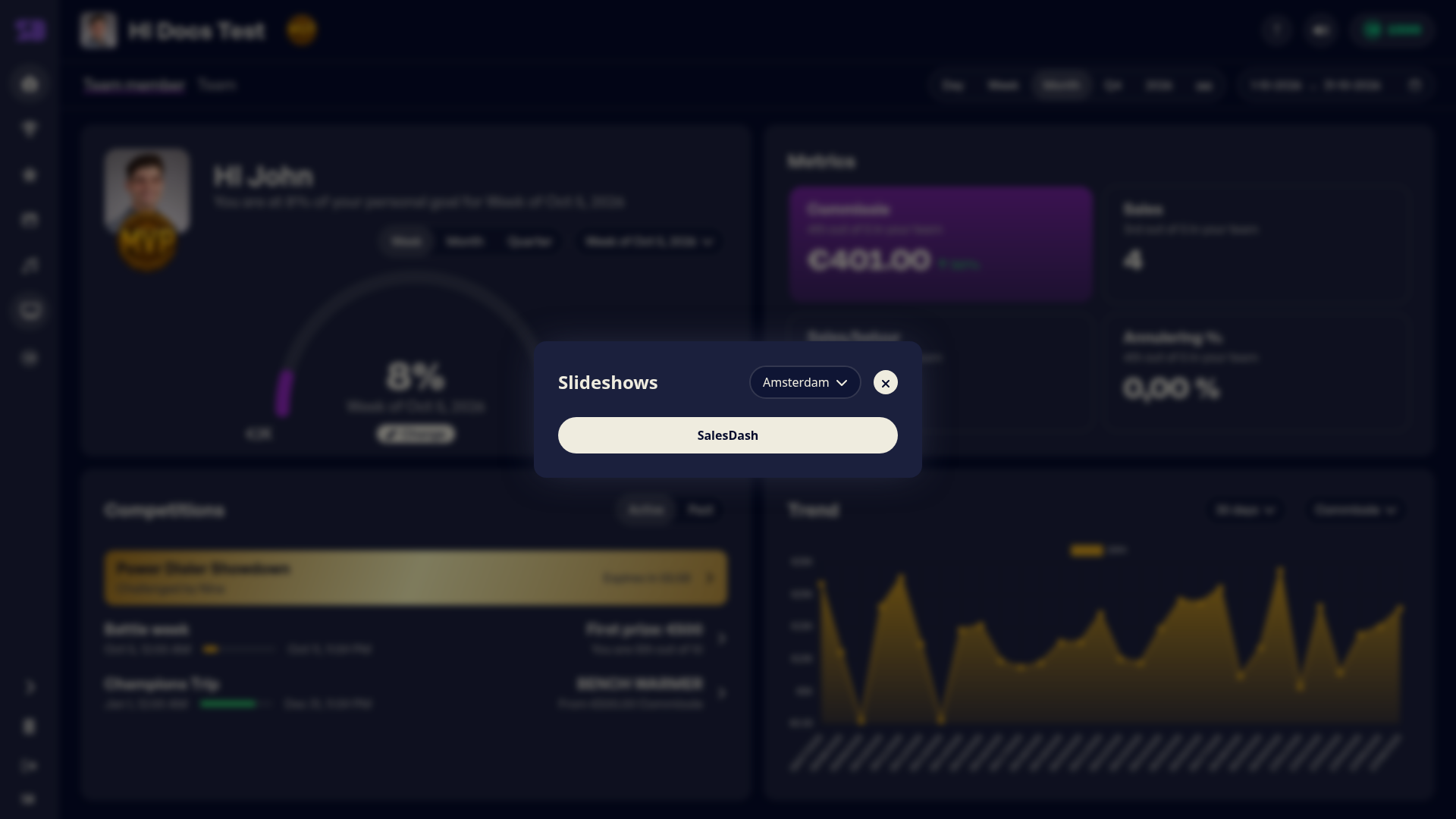
The slideshow then runs full screen and switches between slides automatically.
If your organisation uses the shop, you earn coins, for example through sales, achievements, competitions and team goals. Your organisation decides exactly what earns coins. Your balance is shown in the top right.
In the shop you exchange your coins for rewards. Click Request on a reward; your manager takes care of the rest.
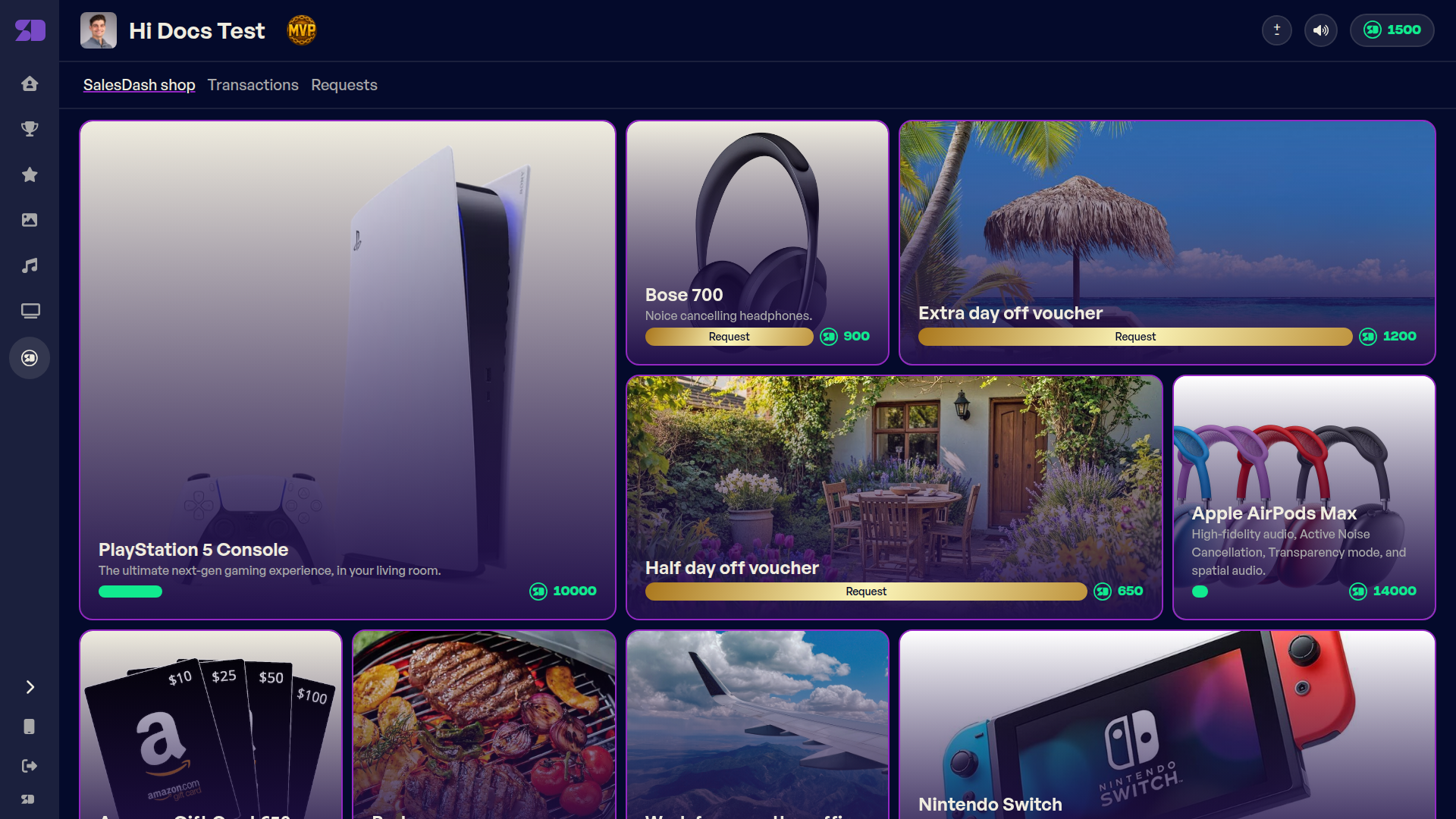
Under Transactions you see how you earned and spent your coins. Under Requests you see the status of the rewards you've requested.